
The short answer
Paste the earlier version into Original and the newer version into Revised in ByteDip’s Text Difference Checker. The result marks unchanged lines with a space, changed lines with ~, added lines with +, and removed lines with -.
The comparison is line-based and position-sensitive. It is a good fit for notes, configuration snippets, plain-text exports, and short document revisions where you want a readable local check.
When a line-level comparison helps
A side-by-side glance is easy to lose when a small edit sits inside a long block of text. A line-level result gives you a compact review surface and keeps both source versions available for comparison.
- Review a revised list, note, or plain-text export before sharing it.
- Check whether a configuration line changed without opening a full editor.
- Spot additions and removals while keeping the comparison in the current browser.
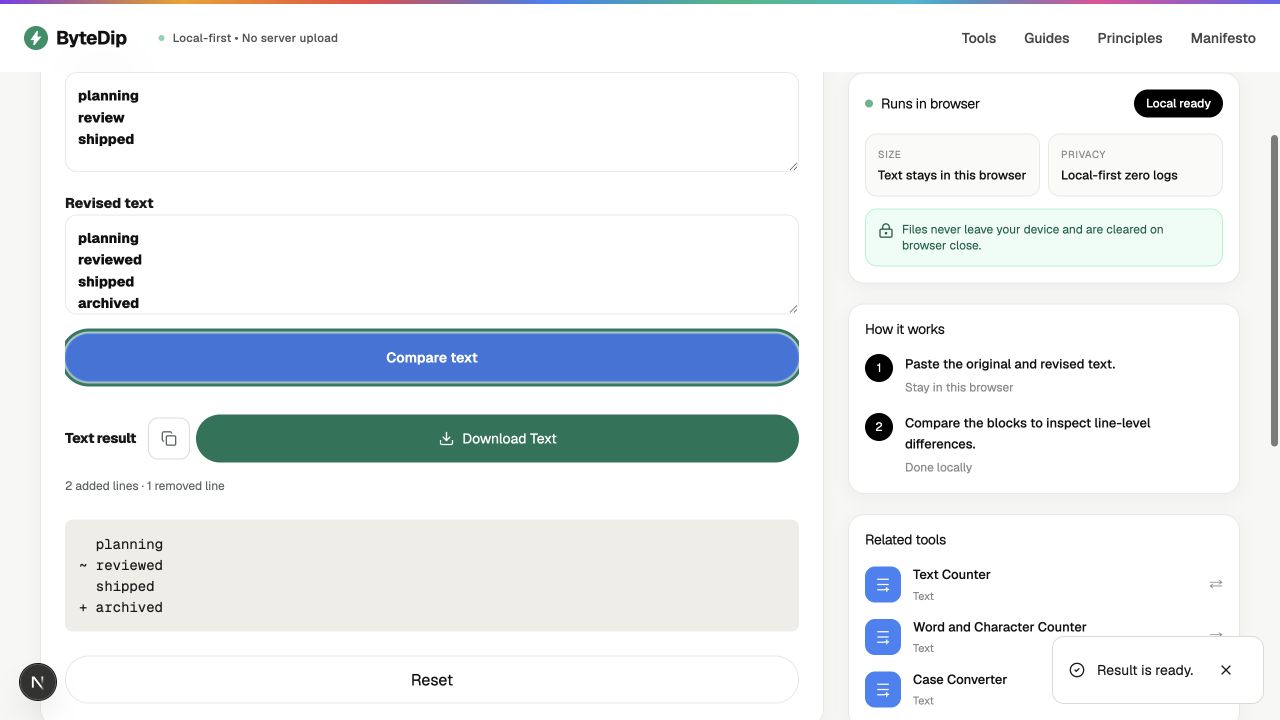
How to compare two text blocks
- Keep the earlier copy in viewUse the version you want to treat as the baseline. It does not need to be a file; copied text works too.
- Paste both versionsPut the baseline in Original and the newer copy in Revised. Keep each line break intact so the result remains readable.
- Compare the blocksChoose Compare. ByteDip shows a line-level result with a visible marker at the start of each changed, added, or removed line.
- Review the marked linesRead the revised value for a changed line, then copy or download the comparison if you need to keep a review note.
Reading the result
  title
~ updated draft
  footer
A leading space means the line is the same at that position. A tilde means the line changed; the result shows the revised line. A plus marks a line that exists only in the revised text, while a minus marks a line that exists only in the original.
What to do next
Use Find and Replace Text when you already know the exact replacement you want to make. Use Sort Lines only when changing the order is intentional; sorting before comparing can hide the sequence in which a change happened.
Both text blocks stay in this browser. The comparison result is not sent to ByteDip analytics or a server.
Ready to compare your own versions? Open Text Difference Checker