
The short answer
Upload a .json file or paste strict JSON into ByteDip’s editor, then choose Format JSON. The tool validates the syntax first, then adds indentation and line breaks so the same data is easier to inspect, copy, or download.
The workflow is browser-local, which is useful for API payloads, configuration snippets, logs, and test fixtures that you do not want to send to a remote formatter. The input limit is 1,000,000 characters, whether the JSON starts as text or a file.
What formatting changes
- Start with pasted JSON or choose one .json file from your device.
- Valid JSON receives readable whitespace and two-space indentation.
- The JSON values, keys, arrays, and object structure remain the same.
- The result can be copied or downloaded from the workspace.
- Invalid JSON produces a local error and leaves the original input untouched.
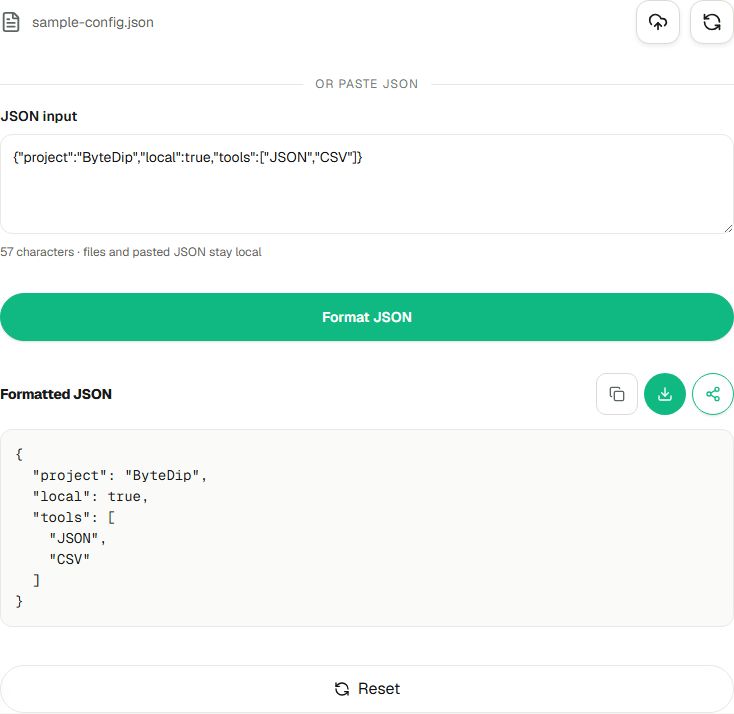
How to format and validate JSON
- Upload or paste the JSONChoose one .json file, or copy the payload, configuration object, or response into the JSON input area. Keep the source copy available if you are debugging a value or delimiter.
- Choose Format JSONByteDip parses the input locally. If the syntax is valid, the formatted result appears below the editor; if not, the tool shows an error without replacing your input.
- Inspect the structureUse the indentation to review nesting, arrays, keys, and values. Formatting improves readability but does not check whether the values are correct for your API or application.
- Copy or download the resultUse the result actions when you need a readable JSON file or a clean copy for a local editor, request body, ticket, or configuration review.
A small example
{"project":"ByteDip","local":true,"tools":["JSON","CSV"]}

becomes

{
  "project": "ByteDip",
  "local": true,
  "tools": ["JSON", "CSV"]
}
Only the presentation changes in this example. The object still has the same three properties, and the tools array still contains the same two strings.
When validation fails
Start with the first error the tool reports. Common causes include a missing quote, an extra comma, an unclosed object or array, or a key that is not wrapped in double quotes. JSON Formatter does not silently repair the source, so you can compare the error with the original input and make the change deliberately.
- Use double quotes for object keys and string values.
- Remove trailing commas after the last item in an object or array.
- Close every opening brace and bracket.
- Keep comments outside the JSON document or move them into a separate note.
Choose the next JSON debugging tool
Formatting improves readability and checks strict JSON syntax; it does not confirm that the values follow an API or application contract. For the next step, match the tool to the question: explore nested objects with JSON Tree Viewer, compare earlier and updated values with JSON Diff, or check fields and types against a schema with JSON Schema Validator. These workflows run in your browser.
Open JSON Tree Viewer to expand or collapse nested objects and arrays without editing the source value. Explore nested JSON in JSON Tree Viewer
Open JSON Diff to locate added, removed, and changed values by JSON path. Compare two JSON values with JSON Diff
Open JSON Schema Validator to check common schema rules such as required fields and data types. Check JSON against a schema
For tabular source data, use CSV to JSON Converter when you need explicit header, row-shape, empty-value, or type options. Use XML Formatter or YAML Formatter when your source is in those formats.
Format and validate a JSON document locally with ByteDip’s JSON Formatter and Validator. Open the JSON Formatter and Validator