
The short answer
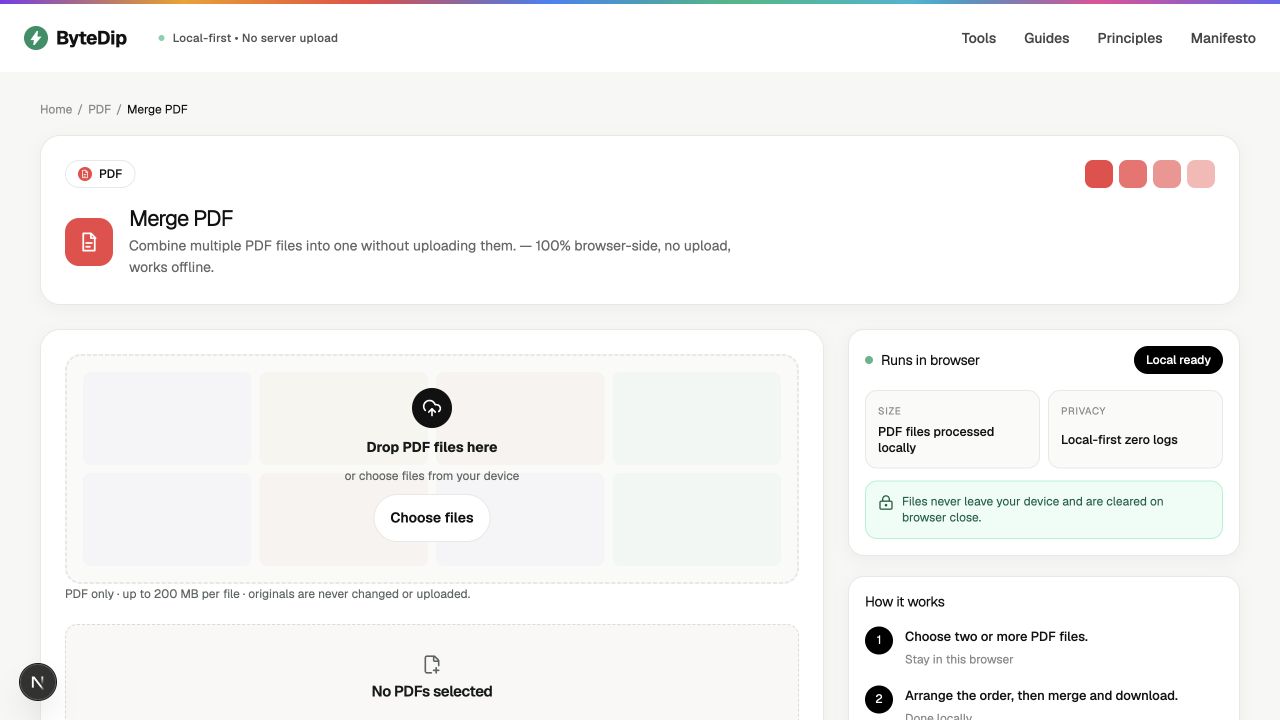
Choose two or more PDF files in ByteDip’s Merge PDF tool, arrange them in the order you want, then merge and download the new document. The source PDFs are not edited or uploaded; ByteDip creates a separate merged copy in your browser.
This is useful for assembling a packet, combining signed pages, or collecting related exports before sending one file onward.
Before you merge
- Rename or note the source files if their order is not obvious.
- Check that each PDF opens normally and is not encrypted in a way the browser cannot read.
- Decide whether you need every page or only selected pages from each document.
ByteDip supports files up to 200 MB each. If the source is malformed or encrypted, the merge may not be able to process it.
How to combine the files
- Choose the PDFsSelect two or more PDF files from your device. The tool keeps the selected file contents in the browser.
- Arrange the orderReview the file list and move documents into the sequence the finished PDF should use.
- Merge the documentsChoose the merge action to create one new PDF from the selected files.
- Download the resultOpen or save the merged copy, then keep the source documents until you have confirmed the pages and order.
When another PDF tool is better
Use Split PDF when every page should become its own download. Use Extract PDF Pages when you need a selected range or a few individual pages in one new document. Keeping those decisions separate makes the resulting PDF easier to review.