
The short answer
Choose an image in ByteDip’s Image Metadata Viewer and Remover to inspect the file details your browser can read. When you want a cleaner copy, create one through the canvas-based cleaning action and download that new file instead of sharing the original.
A clean copy is useful when the image may contain camera, location, editing, or software details that are not part of the visible picture. It is a privacy step, not a guarantee that every possible hidden data source has been removed.
Why metadata deserves a quick check
The picture itself may be harmless while the file carries context about how it was created or edited. That context can be useful to you, but unnecessary for the person receiving a copy.
- Inspect the file before deciding whether a clean copy is needed.
- Keep the original private if it is the source of record.
- Share the cleaned copy when the recipient only needs the visible image.
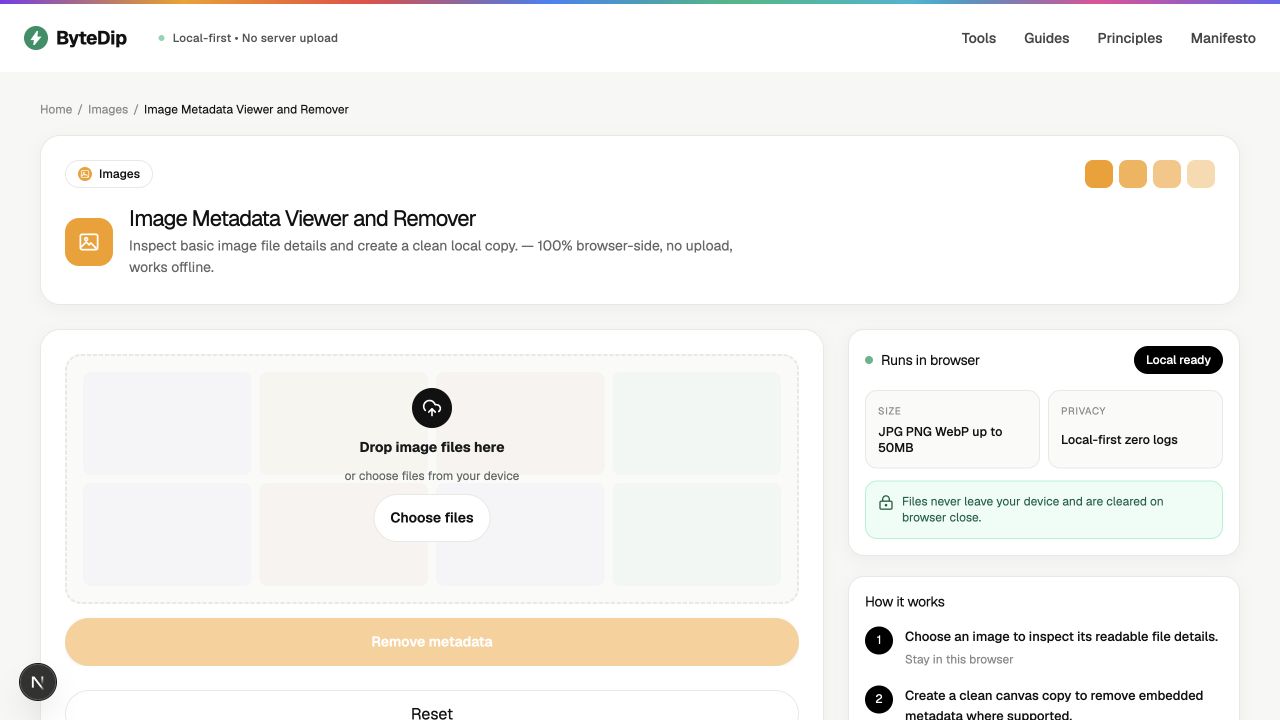
How to inspect and clean an image
- Choose the imageSelect the photo or graphic you are preparing to share. The file is read in the current browser.
- Review the readable detailsUse the viewer to see the basic file information exposed by the browser and the encoded image.
- Create a clean copyChoose the cleaning action when you want a canvas-reencoded copy. The original remains unchanged on your device.
- Share the new fileDownload the clean copy and verify its dimensions and appearance before replacing the original in your workflow.
What the clean copy does and does not promise
Canvas re-encoding can remove metadata carried through the original encoded image in supported browsers, but the viewer does not expose every EXIF field and the result is not a forensic guarantee. Cleaning may also change encoding or image quality.
Remove photo metadata before sharing
People use remove, delete, strip, and wipe to describe the same practical goal: create a shareable copy with less embedded file information. The wording can differ, but the important workflow is to inspect the source, create a separate clean copy, and keep the original unchanged.
Inspect readable details and create a clean local copy with ByteDip’s Image Metadata Viewer and Remover. Open Image Metadata Viewer and Remover
Remove EXIF data
EXIF is the metadata commonly embedded in photos by cameras, phones, and editing software. Depending on the device and file, it can include capture time, camera or phone model, orientation, software details, and sometimes location coordinates. ByteDip can report the readable details exposed by the browser and create a separate cleaned copy locally.
Remove GPS / location data from photos
GPS or location metadata can reveal where a photo was captured. If the recipient only needs the visible image, inspect the source and share a cleaned copy rather than the original. Review the downloaded result before sending it and keep the source file unchanged for your records.
Use ByteDip’s Image Metadata Viewer and Remover to inspect readable image details and create a clean copy without uploading the photo. Inspect and clean image metadata locally
Delete image metadata
A browser-based clean-copy workflow is useful for common photo-sharing tasks, but it is not a forensic guarantee. The tool reports the metadata exposed by the browser and re-encodes a new image locally; review the result before sharing and avoid replacing the original when its source details matter.
Strip metadata before sharing
- Remove metadata when the recipient only needs the visible image.
- Delete or strip the metadata from a copy, not the source of record.
- Wipe is an informal term, so describe the exact cleaning boundary instead of promising total removal.